 Homeboard
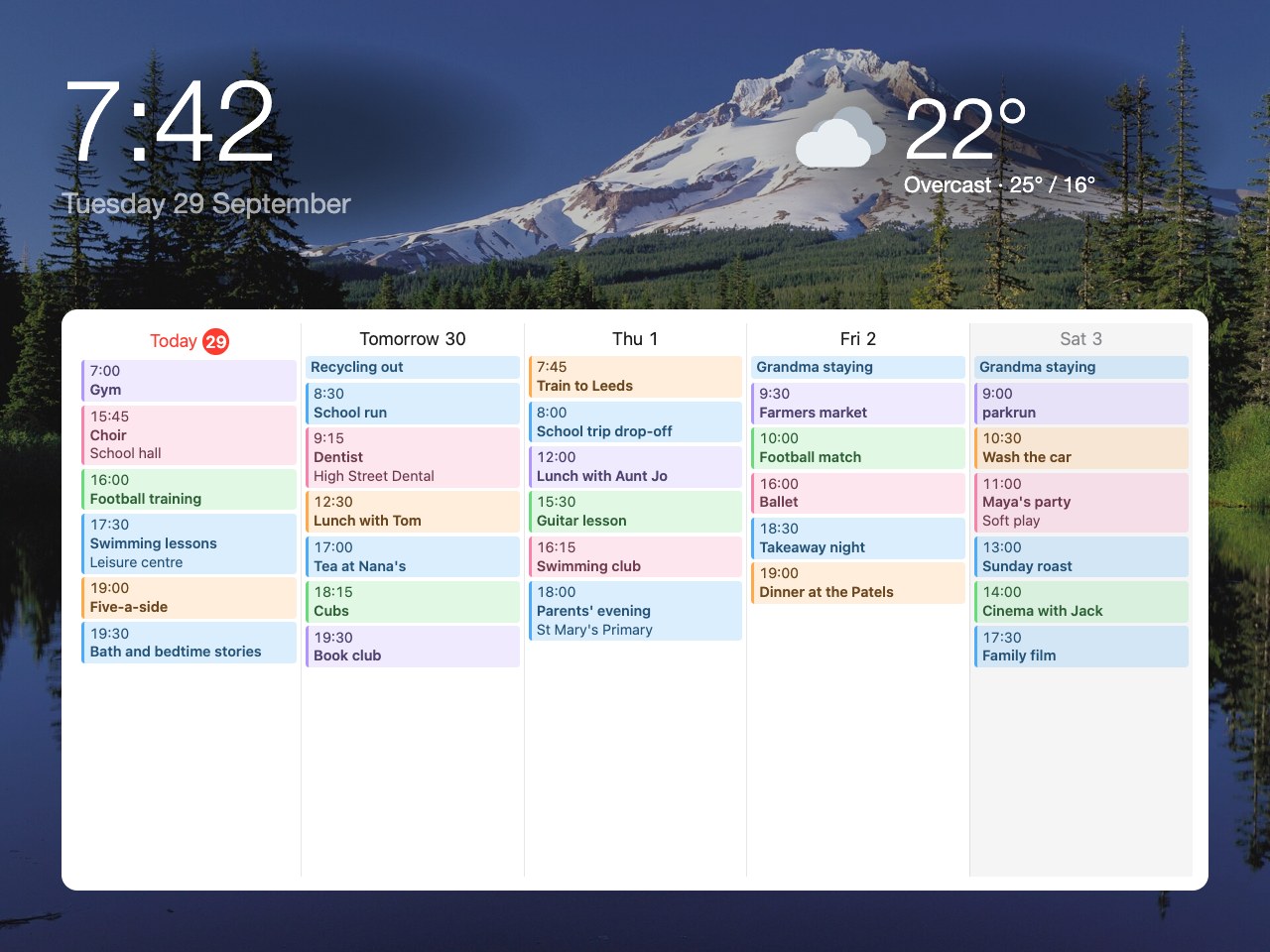
Set it up
- On your phone or computer, go to homeboard.uk, choose Start free and add your calendars. No calendar to link? Add events in Homeboard from your phone.
- On the Fire tablet, open Silk and go to homeboard.uk/#/pair.
- On your phone, open Tablets in Homeboard and press Put it on the tablet. Type the six-digit code it shows into Silk and press Show my display. There is no password to type on the tablet.
- Bookmark the page from Silk's menu, so it is one tap away after the tablet restarts. Then swipe up from the bottom edge of the display for the quick actions, and tap Full screen.
Homeboard asks the browser to keep the screen on while it shows your display. That is only a request, so check that it works on your tablet, and if the screen still goes dark, set the longest screen timeout in the tablet's settings. The Android and Fire guide has the steps, and covers pinning the app and looking after the battery.
Which Fire tablets work
Homeboard works on Fire tablets from 2018 on. Amazon lists these models, with the Fire OS version it gives for each:
| Fire OS (per Amazon) | Fire tablets | Homeboard |
|---|---|---|
| Fire OS 7 | Fire HD 8 (2018), Fire 7 (2019), Fire HD 10 (2019), Fire HD 8 (2020), Fire HD 10 (2021) | Works, in Silk |
| Fire OS 8 | Fire 7 (2022), Fire HD 8 (2022), Fire Max 11 (2023), Fire HD 10 (2023), Fire HD 8 (2024) | Works, in Silk |
Checked 10 November 2026 against Amazon's page for identifying Fire tablets, which Amazon last updated on 30 September 2025. Models and software versions can change.
Fire tablets from before 2018 are too old for Homeboard. The full list, with iPads and Android tablets.
What you get
The calendar, weather and clock are free on one tablet with no time limit. Plus adds a chore chart with points and rewards, your own photos, phone notes and more tablets in other rooms: free for 30 days with no card, then £29 once for the whole home. See pricing
More guides: all Homeboard guides.