 Homeboard
How the chart works
Each person has their own list of jobs for today. A tap marks a job done and adds its points to their balance. You choose the days each chore appears, so packing a school bag can show on weekdays and watering plants can show at the weekend.
Shared jobs can be assigned to everyone who does them, or set to take turns with one person each week. Children do not need an email address or a login to use the chart on the tablet.
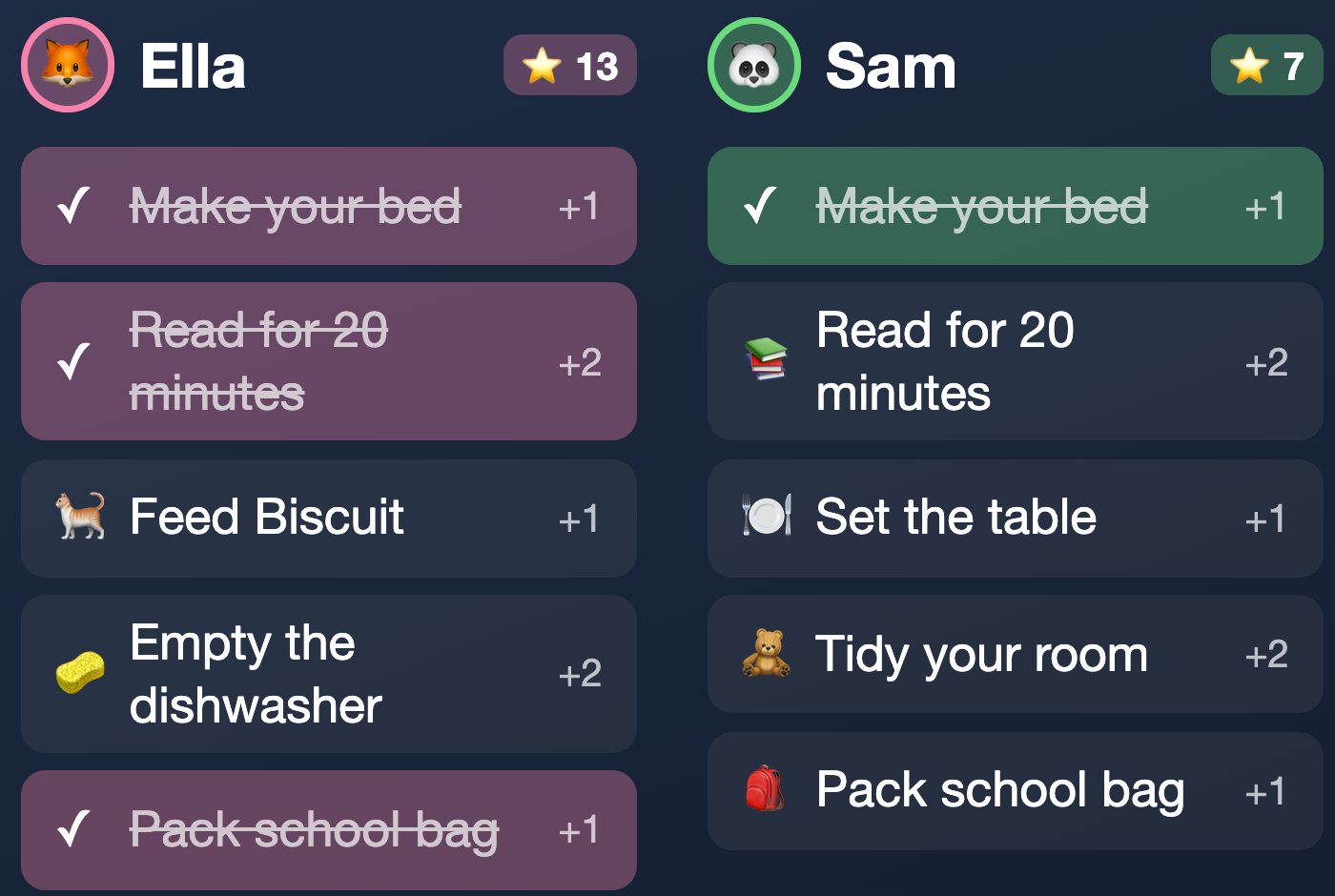
An example family and chores, showing the Homeboard chart.
Set up your first chores
- Make your home on your phone or computer. Every new home starts with 30 days of Plus.
- Open Family. Under People, add each person who will have jobs on the chart.
- Choose Add chore. Give it a short name, choose who does it, select its days and set its points.
- Start with a few specific jobs, such as Put shoes away, Pack school bag or Set the table. Add more once the family has tried the chart.
You can edit the chores from your phone. You do not need to type them on the wall tablet.
Choose points and rewards
On Family, use Add reward to name a reward and choose how many points it costs. Picking Friday's film, choosing a weekend activity or an extra bedtime story are possible examples.
A child can claim a reward from a Points and rewards block on the wall when they have enough points. Claiming it spends those points. Add that block to a custom layout if you want rewards alongside the chart.
You can set a parent PIN on Family. The wall then asks for it before a reward is claimed. The chore chart also has a child lock setting that asks for the PIN before unticking a job. The PIN is a child lock; anyone signed in to your home can change it.
Put the chart on the wall
The ready-made Family layout puts the calendar beside chores and notes. If you have created chores but none of your displays shows them, Family offers a button to put them on a wall. For a custom layout, add the Chore chart block and choose the people to show.
Pair the tablet from Displays on your phone. The setup steps depend on the browser, so follow the iPad guide or the Android and Fire guide. Put the tablet where children can reach it safely, on a stand or a suitable mount.
Keep the routine simple
- Use a clear finish: Put lunchbox by the door is easier to tick off than Get ready.
- Pick the right days: a weekend chore does not need to fill a weekday list.
- Agree what points mean: choose achievable rewards together and keep the rules consistent.
- Try it on the actual tablet: check that names, jobs and buttons are comfortable to read and tap.
The calendar can stay beside the chart, and Plus also lets you show your own family photos or send notes to the wall from your phone.
What it costs
One wall display with the family calendar, weather, picture themes and night mode is free with no time limit. The interactive chore chart, points and rewards are part of Plus, £29 once per home. Plus also includes your own photos, notes from a phone and extra tablets. Compare Free and Plus.
Every new home gets 30 days of Plus with no card. If you do not buy, the home returns to Free. Your chores and rewards are kept, but the Plus blocks stop showing on the wall until you get Plus.